
Stripe Receipts Allowlist: Send Receipts to Chosen Customers
Every month, small e-commerce teams can generate hundreds of unnecessary receipt emails, causing support load and unhappy clients. A stripe receipts allowlist is a no-code control that restricts Stripe receipt emails to only the customers you choose. Our how-to guide shows how to set up a Stripe receipts allowlist without writing code and convert selective delivery to RouteReceipts, a dashboard-native app that preserves an audit log and makes compliance easier. We'll also cover disabling Stripe's automatic sends and common troubleshooting steps from the RouteReceipts setup guide. Doing this manually wastes hours and increases compliance risk for finance teams. Curious which default Stripe settings most teams overlook that silently reroute receipts?
How do I decide which customers belong on a Stripe receipts allowlist?
Decide allowlist membership by writing clear, enforceable rules tied to business needs and Stripe data. Map those rules to customer fields, check whether a receipt or a formal invoice is required, and estimate the operational impact before you add anyone to the allowlist.
Step 1: Define business rules for allowlist membership. 🧾
Start with a single, one-sentence rule that states who must receive receipts. Use language your finance team can enforce so policy decisions translate to tags or metadata in Stripe. Typical, copy-ready rules our customers use include:
- "Enterprise customers with a purchase order (PO) number or net terms must receive emailed receipts."
- "Customers who explicitly request emailed receipts for expense reporting receive receipts."
- "Contractors and resellers billed to a corporate address receive receipts."
How to operationalize the rules.
- Pick the primary criterion (PO number, corporate email domain, subscription plan ID). Expected outcome: a single, auditable field to evaluate per customer.
- Write the rule into your finance policy and add enforcement steps (who verifies PO numbers, where requests are logged). Expected outcome: finance can reject/approve allowlist requests without developer help.
- Train support to surface receipt requests into finance workflow. Expected outcome: fewer ad-hoc emails and consistent allowlist entries.
RouteReceipts integrates with this step by giving your finance team a dashboard-native allowlist, so policy changes map to a visible list rather than a spreadsheet entry. See our article Which Customers Should Receive Stripe Receipts? 2026 for additional rule templates and examples.
Step 2: Map Stripe customer data to allowlist criteria. 🔎
Map each business rule to specific Stripe fields so you can identify candidates automatically or via a bulk import. Common mapping choices are customer metadata fields, email domain, billing_address.country or postal code, subscription plan IDs, and explicit tags (for example, a "receipts_allowed" tag).
Practical tag and export strategy.
- Decide on 2–3 mapping fields (example: corporate_email_domain, billing_type, invoice_requested). Expected outcome: minimal fields reduce errors during bulk updates.
- Export a CSV of customers with these columns: customer_id, email, name, billing_address, metadata keys, active_subscription_ids, last_charge_date. Expected outcome: a review-ready file that finance can sign off on before import.
- For bulk additions, validate rows with missing billing address or missing PO number and send them back to support for completion. Expected outcome: cleaner allowlist and fewer misrouted receipts.
RouteReceipts supports creating and maintaining an allowlist from your Stripe dashboard, which removes the need for custom webhook plumbing or manual webhook scripts. For metadata best practices and Payment Links-specific guidance, consult Stripe Payment Links Receipts (2026): Event Sequencing, Success URLs, API Metadata for Allowlists and our RouteReceipts documentation for setup details.
Step 3: Run a compliance check for receipts versus invoices. ⚖️
Confirm whether a receipt satisfies legal and contractual requirements or whether you must issue a formal invoice before adding a customer to the allowlist. In the EU, B2B sales that require VAT reporting often need a formal invoice with supplier details and VAT IDs; a simple receipt may not meet those requirements. In the US, receipts commonly suffice for point-of-sale sales, but corporate customers that request net terms, POs, or vendor invoices may require a formal invoice for their accounting.
Compliance checklist finance teams can apply before approving a customer:
- Customer classification: Is this B2B with a VAT number or a corporate buyer that requires net terms?
- Contract terms: Does the sales contract require invoices rather than receipts?
- Jurisdictional rule: Does local tax law mandate invoices for specific transaction types (exports, reverse charge, cross-border B2B)?
- Audit trail: Is the customer request recorded and attached to the Stripe customer record or your finance ticket?
⚠️ Warning: Automatically sending a receipt where law requires an invoice can create VAT reporting gaps or customer disputes; have your accountant review EU B2B flows before bulk-allowlisting.
RouteReceipts routes receipt emails but does not generate legally formatted invoices. Use RouteReceipts to limit who receives receipts while your billing or accounting system issues formal invoices when required. Our guide Which Customers Should Receive Stripe Receipts? 2026 covers common jurisdictional distinctions.
Step 4: Estimate business impact and measurable outcomes. 📊
Estimate time and volume impact by comparing your total monthly charge events to the proposed allowlist size. Build a simple ROI model with four inputs: monthly charges, allowlist percentage, average staff time per receipt-related task, and the hourly cost of those staff members.
Step-by-step ROI estimate.
- Count monthly charge events (for example, 2,000). Expected outcome: baseline for email volume.
- Identify allowlist candidates (for example, 600 enterprise accounts). Expected outcome: projected receipt sends after allowlisting.
- Compute reduction: (baseline sends - allowlist sends) / baseline sends. Example: a 70% reduction if most charges are retail.
- Multiply reduced sends by average handling time per receipt issue (for example, 5 minutes per support ticket) and staff hourly rate to estimate monthly savings. Expected outcome: a dollar-value estimate to present to leadership.
Risks of overallowlisting include accidentally sending receipts that trigger support tickets or failing to meet invoice requirements. RouteReceipts reduces these risks by centralizing decisions in the Stripe dashboard and keeping a decision audit log so finance can track who was added and why. For a detailed ROI calculator and sequencing notes, see Stripe Payment Links Receipts (2026): Event Sequencing, Success URLs, API Metadata for Allowlists.
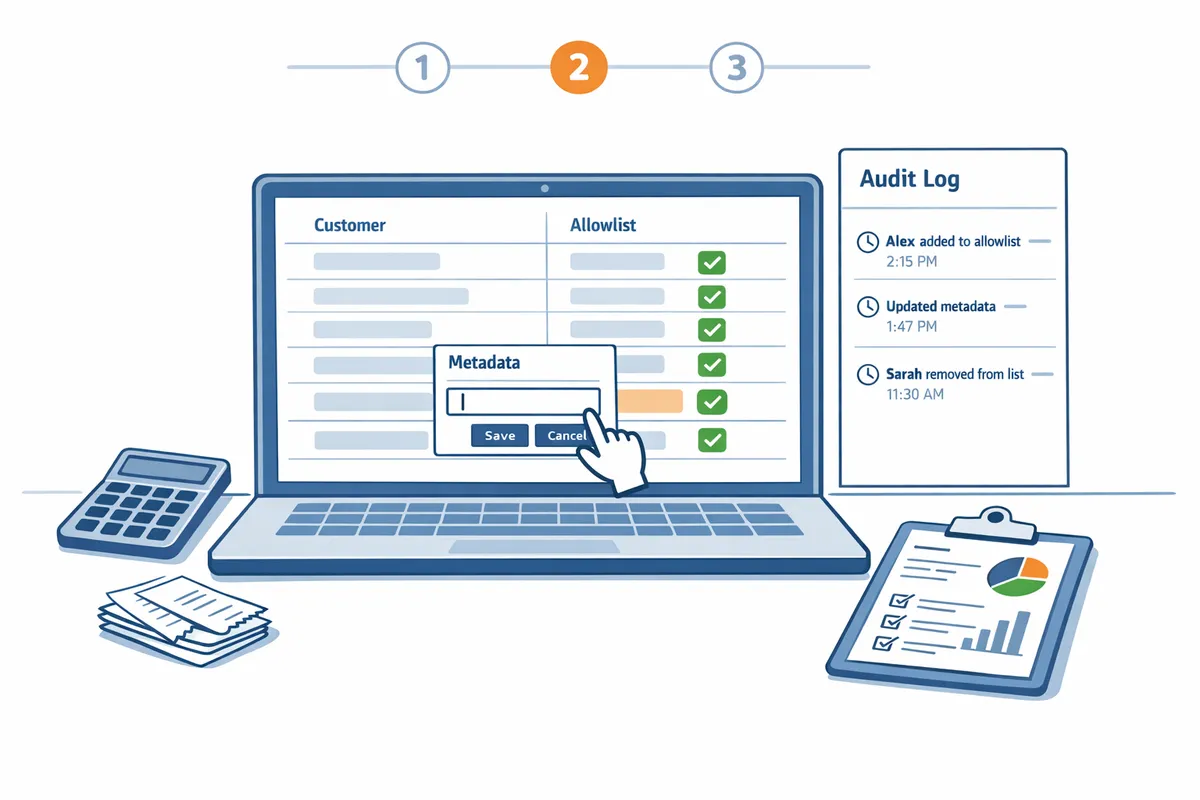
How do I install RouteReceipts and create an allowlist in Stripe without code?
Install RouteReceipts from the Stripe Marketplace, disable Stripe's global automatic receipt sends if you need selective routing, and add allowlist entries inside the RouteReceipts dashboard without writing code. This approach lets you test routing decisions in a staging account and use a decision audit log to verify why receipts were sent or suppressed.
Step 1: Install RouteReceipts via the Stripe Marketplace ⬇️
Install RouteReceipts from the Stripe Marketplace to add a dashboard-native allowlist UI to your Stripe account. Open Stripe, choose Marketplace, search for RouteReceipts, and follow the OAuth flow to grant the app the permissions it requests (read customers, read charges, manage webhooks). Installation typically completes in under 10 minutes. Our RouteReceipts documentation explains each permission and lists troubleshooting steps if the OAuth flow fails.
Expected outcome. You will see a RouteReceipts item in your Stripe Apps list and a new RouteReceipts dashboard link inside Stripe.
What can go wrong. If your Stripe user lacks admin permissions, the install will fail. Grant admin access or have an account owner complete the install.
Step 2: Disable Stripe's automatic receipt sends (if required) ⚙️
Turn off Stripe's global automatic receipt setting when you plan to control deliveries selectively so RouteReceipts can make routing decisions. In Stripe go to Settings, Email receipts, and toggle off "Successful payments" and "Refunds" only if RouteReceipts will handle delivery decisions. This stops universal receipts immediately; customers stop receiving Stripe's default receipt emails until RouteReceipts sends them.
Coordinate the change with support and finance so nobody is surprised by a sudden drop in emailed receipts. If you need a temporary window for testing, schedule the toggle during low transaction volume and revert quickly if tests reveal unexpected behavior.
💡 Tip: Notify customer support and billing teams at least one business day before disabling automatic receipts so they can expect test tickets and avoid confusion.
Step 3: Create allowlist entries from the RouteReceipts dashboard 📋
Add customers manually or import a CSV inside the RouteReceipts dashboard to populate your allowlist without code. Use manual adds for one-off VIPs or contractors; use a CSV import for large cohorts (include customer ID, email, and tags). Map CSV columns to Stripe customer ID and email during import to avoid mismatches. Tagging lets you group customers by rule (for example: enterprise, contractors, trial) and use those tags as the basis for selective sends.
Expected outcome. Your allowlist will show customer rows, tags, and the source (manual or CSV). For guidance on which customers should be on the list, review our decision framework in Which Customers Should Receive Stripe Receipts? 2026.
What can go wrong. Common errors are mismatched customer IDs and duplicate rows. Run a small test import of 10 rows first to confirm mapping before bulk uploading.
Step 4: Test routing decisions with staged charges 🔍
Verify routing by running three test charges: an allowlisted customer, a non-allowlisted customer, and a borderline profile. Use a Stripe test mode or a staging account to create these charges. After each charge, check the RouteReceipts audit log and your email inbox to confirm whether a receipt was sent, suppressed, or retried.
Three-check test sequence. 1) Charge an allowlisted customer and confirm receipt email and audit-log entry. 2) Charge a non-allowlisted customer and confirm suppression. 3) Charge a borderline profile (e.g., tagged but missing email) and confirm how RouteReceipts handled it and whether a warning appears in the log.
What to record. Save the audit-log timestamps, Stripe charge IDs, and message status to a short test report for finance and support teams.
Step 5: Monitor the decision audit log and usage limits 📈
Use the RouteReceipts audit log to confirm why a receipt was sent or suppressed and to spot unexpected behavior. The audit log shows the decision reason (allowlist match, tag rule, missing email) and a timestamp for every routed charge. Review the log daily for the first two weeks to catch edge cases like tags that were misapplied or customers with multiple Stripe profiles.
Plan and usage. Check your RouteReceipts plan page for monthly allowances and upgrade thresholds if you expect growth. Monitoring prevents surprise overages and reduces compliance risk from accidentally suppressed receipts.
Step 6: Compare Stripe native receipts, RouteReceipts, and DIY scripts (table) ⚖️
Compare features, ongoing effort, and compliance risk across native Stripe receipts, RouteReceipts, and DIY scripts to choose the fastest, lowest-risk path. Below is a side-by-side evaluation to help you decide.
| Option | Setup time | Maintenance effort | Compliance risk | Best for | Typical cost impact |
|---|---|---|---|---|---|
| Stripe native receipts | Minutes to toggle on | Low | Higher risk if you need selective sends (sends to everyone) | Small stores that always want receipts | No extra cost |
| RouteReceipts | ~10 minutes to install and configure | Low (dashboard UI, audit log) | Low (explicit allowlist, audit trail) | Teams needing selective stripe receipt delivery for enterprises and contractors | Predictable monthly plan with upgrade tiers |
| DIY scripts (webhooks + DB) | Days to weeks | High (bugs, edge cases, on-call fixes) | Higher risk (duplicate or missing receipts during event sequencing) | Engineering teams with specific integrations | Higher initial engineering cost, ongoing maintenance |
How to choose. If you want to automate selective receipts for Stripe customers without developer work, RouteReceipts reduces manual rules and audit headaches compared with DIY scripts. For more on event sequencing and Payment Links, see our guide on Stripe Payment Links Receipts (2026).
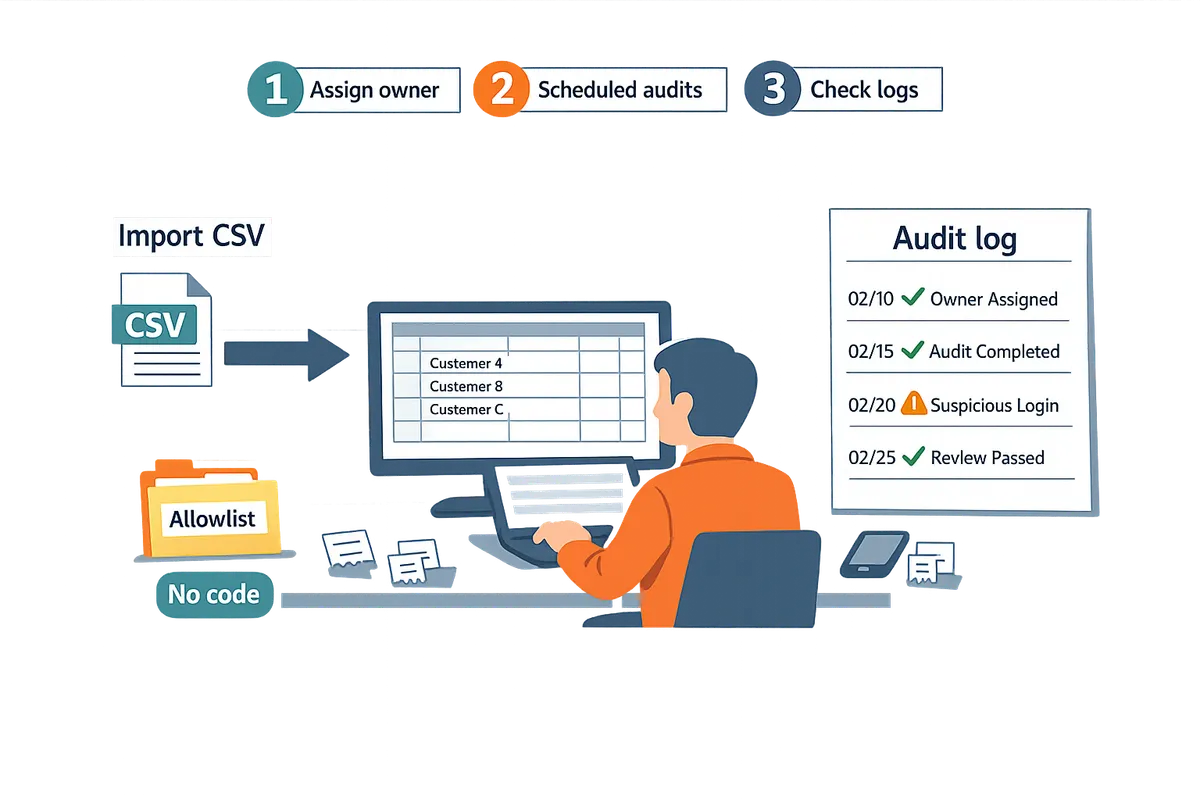
How do I operate, troubleshoot, and optimize a receipts allowlist for scale?
Operate a receipts allowlist by assigning a clear owner, running scheduled audits, and using logs to diagnose delivery issues before they impact customers. Route Receipts centralizes the allowlist and decision audit log so teams can run these routines without engineering work. Follow the checks below to keep routing accurate and scalable.
Step 1: Schedule audits and assign ownership 🗓️
Assign a finance or operations owner who runs a monthly allowlist audit and approves changes. Create a short checklist the owner uses each month: 1) reconcile allowlist entries against active contracts or subscription metadata, 2) confirm customer communication preferences, and 3) route any disputed entries to a supervisor for sign-off. Use a repeat calendar reminder sequence: set an initial audit reminder on day 1, a mid-month follow-up on day 15, and a final review three days before month-end billing closes. Route Receipts' dashboard makes the audit faster by showing decisions and the source of each rule. For a decision framework that helps you pick which customers should appear on the list, consult Which Customers Should Receive Stripe Receipts? 2026.
💡 Tip: Tie allowlist membership to a single Stripe metadata field (for example "receipts_allowed") so audits only check one column instead of piecing data from multiple sources.
Step 2: Troubleshoot missing or duplicate receipts 🔍
Resolve most missing or duplicate receipts by checking the Route Receipts audit log, the customer's allowlist entry, and Stripe's email delivery status, in that order. Steps to follow: 1) Open the Route Receipts decision audit log and filter by the invoice or customer ID to see whether the app blocked, routed, or passed the send. Common log messages: "routed" means Route Receipts allowed the send; "blocked" means customer not on allowlist; "passed-through" means global Stripe setting delivered the email. 2) Verify the customer's allowlist entry: check for typos in the customer email, duplicate customer records, and correct metadata tags. 3) In Stripe, review the invoice's email delivery status and the account-wide receipts toggle; an SMTP bounce will appear in the charge or invoice event. Quick fixes: add the correct customer record to the allowlist, merge duplicates, or request a manual resend for bounced emails.
⚠️ Warning: Re-enabling Stripe's global receipt sends without first syncing your allowlist will cause receipts to go to every customer. Always confirm allowlist state before flipping the global toggle.
Step 3: Monitor usage, plan limits, and upgrade threshold 📈
Prevent suppressed sends by monitoring monthly routed receipt counts and upgrading your Route Receipts plan before you reach capacity. How to monitor and act: 1) Check the Route Receipts usage dashboard weekly during growth phases and set an alert at 60 to 80 percent of your plan cap. 2) If your monthly routed receipts trend upward across two billing cycles, schedule a plan upgrade so the change takes effect before peak billing days. 3) During migration from a free tier to a paid tier, review historical monthly peaks to pick the next tier rather than guessing average usage. Route Receipts shows per-month routed totals and a simple upgrade path in the dashboard so billing teams can authorize changes quickly. Planning this proactively prevents delayed invoices and customer confusion during high-volume months.
Step 4: Best practices and common mistakes to avoid ✅
Avoid recurring problems by using narrow allowlist rules, locking critical toggles during audits, and embedding compliance checks in approvals. Common mistakes and safeguards:
- Too-broad allowlist rules that match many customers by accident. Use precise identifiers like contract ID or organization metadata.
- Forgetting to disable Stripe's global receipt toggle when you expect selective routing. Add a pre-audit checklist item to verify the toggle state.
- Skipping compliance checks for VAT or regional invoicing needs. Have legal or finance confirm rule changes that affect EU VAT or US tax reporting.
- Manual edits that create duplicate customer records. Use the Route Receipts dashboard to spot duplicate decisions and merge records in Stripe.
Short operational checklist teams can adopt:
- Monthly owner-led audit with calendar reminders.
- Weekly usage review and alert at 60 to 80 percent of plan cap.
- Three-step troubleshooting flow for delivery issues (audit log, allowlist entry, Stripe status).
- Approval gate for any rule that affects compliance or more than 5 percent of customers.
For implementation details and a no-code setup walkthrough, see the RouteReceipts documentation and the beginner's guide Manage Stripe Receipt Emails Without Coding: Definitive 2026 Pillar Guide to Selective Sends, Allowlists, and Audit Trails. If you use payment links, our guide on Stripe Payment Links Receipts (2026) explains event sequencing and metadata best practices that reduce duplicate or missing sends.
Frequently Asked Questions
This FAQ answers the operational, security, and compliance questions finance and ops teams ask about stripe receipts allowlist and RouteReceipts. Each item gives a concise, actionable answer and points to the relevant documentation or guides for next steps.
How does a receipts allowlist differ from Stripe's default receipt settings? 🎯
A receipts allowlist is a control that restricts which customers receive receipt emails, while Stripe's default setting is a single account-wide on/off toggle. This means the default either sends receipts to everyone or to no one, which creates friction when your customer base includes both enterprise buyers who need receipts and retail buyers who do not. For teams that need selective sending, RouteReceipts adds a dashboard-native allowlist so you can target sends without building webhooks or custom integrations. For guidance on who to include, read our decision framework in Which Customers Should Receive Stripe Receipts? 2026 and follow the setup steps in the RouteReceipts documentation.
Can I set up an allowlist without any code or webhooks? 🛠️
Yes. RouteReceipts provides a dashboard-native setup that lets you create and manage an allowlist without writing code or building webhooks. The typical no-code flow is: install RouteReceipts from the Stripe Marketplace, disable Stripe's global automatic receipt sends, add customers to the allowlist in the RouteReceipts dashboard, and verify routing decisions in the audit log. Follow the step-by-step install and configuration instructions in our documentation to complete each step and confirm expected outcomes.
What should I do if a customer needs an invoice instead of a receipt? 📄
Issue a formal invoice when tax rules, corporate procurement policies, or client requests require line-item tax details, invoice numbers, or legal invoice elements that receipts do not provide. Quick indicators an invoice is required include VAT invoicing requests from EU B2B customers, corporate purchase orders, or clients who require an invoice for expense reimbursement. RouteReceipts controls which customers receive receipt emails but does not convert receipts into invoices; create the invoice inside Stripe and then mark or tag the customer appropriately so your billing and communications match their requirements. See the customer decision guide in Which Customers Should Receive Stripe Receipts? 2026 for examples and next steps.
How does RouteReceipts handle data and privacy for routed receipts? 🔒
RouteReceipts uses data from your Stripe account to make routing decisions and stores only the metadata required for routing and auditing, as described in the privacy policy. Stored items typically include allowlist entries, routing decisions, timestamps, and minimal customer identifiers needed to match events. RouteReceipts does not retain full payment payloads beyond what Stripe exposes for routing, and third-party processors are listed in the privacy document for transparency. For retention windows, processors, and user rights, review the RouteReceipts privacy policy and the FAQ for data-handling details.
What causes duplicate or missing receipts and how do I fix them? 🧭
Duplicate or missing receipts most often come from a mismatched allowlist entry, leaving Stripe's automatic receipt toggle enabled, or email delivery failures. Troubleshoot with this checklist:
- Confirm the allowlist entry matches the customer email or metadata exactly (common mismatch: different contact email on file).
- Verify Stripe's global automatic receipt sending is disabled when using RouteReceipts to avoid duplicates.
- Check the RouteReceipts decision audit log for the event and routing reason.
- Inspect your email provider's bounce and spam reports for delivery issues.
⚠️ Warning: Disable Stripe's automatic receipts before switching to selective routing to prevent duplicate emails.
If the checklist does not resolve the issue, export the audit log and escalate to support with timestamps and event IDs. For additional troubleshooting steps, see our documentation and the Stripe Payment Links Receipts guide on event sequencing.
Will using an allowlist affect subscription billing or customer workflows? 🔁
No. An allowlist only controls receipt email delivery and does not change billing actions, invoice creation, or subscription lifecycle events. Payments, proration, renewals, dunning, and invoice generation in Stripe proceed as configured; RouteReceipts only decides whether the receipt email is sent to the customer. For operational examples (VIP recipients, contractors, or trial users) and how routing fits into the billing flow, see our user guide and the article Manage Stripe Receipt Emails Without Coding.
Use a stripe receipts allowlist to send receipts only to customers who need them.
You now have a no-code path to stop blanket receipt emails and keep finance inboxes focused on what matters. After following the steps, you should be able to create and test an allowlist, confirm routing behavior in Stripe, and reduce unnecessary support tickets and audit noise. For teams that manage mixed client types, this supports selective stripe receipt delivery for enterprises without extra engineering time.
The next practical step is to try Route Receipts with your Stripe account and apply the allowlist you built. Follow our getting-started instructions in the Route Receipts documentation to create your first allowlist entry and route receipts from the dashboard. If you need help deciding who belongs on that list, consult our decision framework in Which Customers Should Receive Stripe Receipts? 2026 for real-world rules and examples.
Start a free trial of Route Receipts and create your first allowlist entry in the setup guide to put selective delivery and compliance controls into practice today.