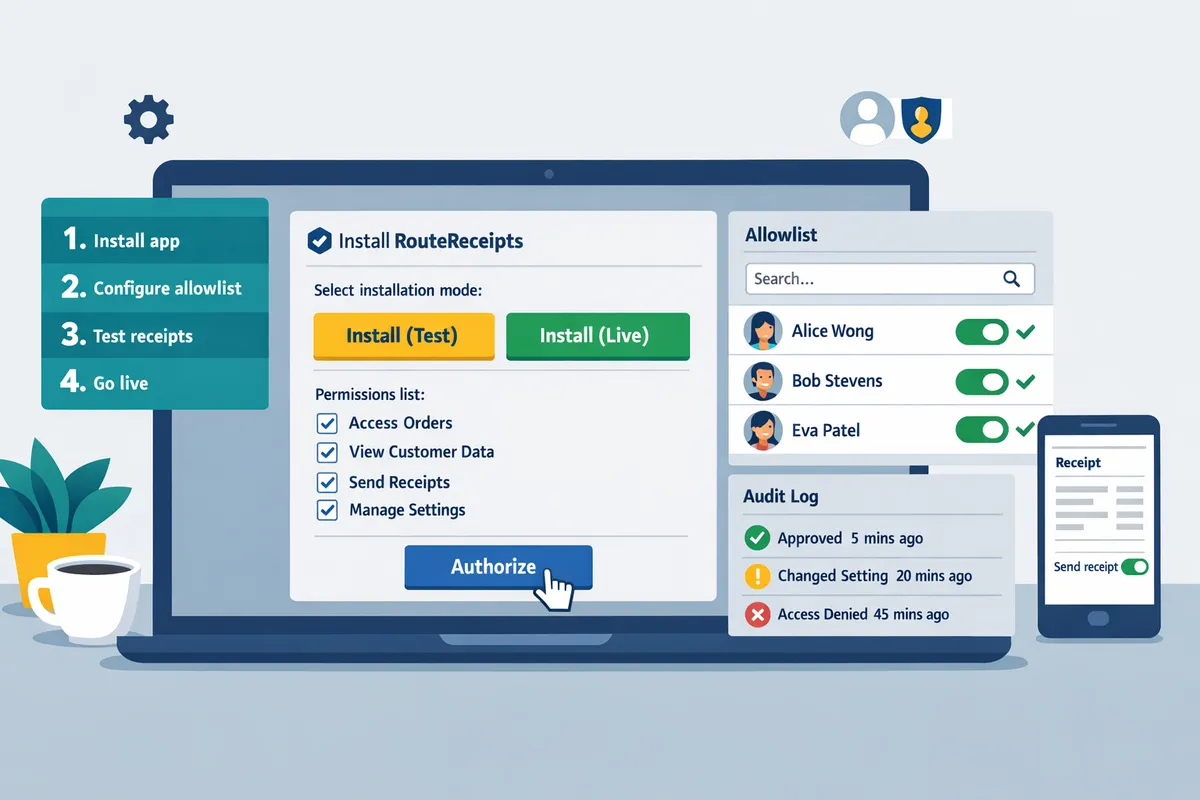
RouteReceipts Stripe App Installation
Sending receipts to every customer can create hundreds of unnecessary emails each month for midsize subscription businesses. routereceipts stripe app is a Stripe application that gives Org owners, admins, and developers a dashboard-native way to allowlist customers and control receipt routing without custom webhooks. This integration guide connects RouteReceipts to your Stripe account and shows step-by-step installation, disabling Stripe's automatic receipts, creating an allowlist, managing plans, and troubleshooting duplicate or missing receipts. Expected setup time is about 5 to 10 minutes via the Stripe Marketplace. Consult our installation docs and comprehensive FAQ for screenshots and edge-case fixes. You might be surprised which default Stripe setting causes most duplicate receipts.
What is RouteReceipts and how does it fix Stripe's all-or-nothing receipts?
Route Receipts is a Stripe app that lets businesses selectively send invoice receipt emails using a dashboard-native allowlist. It fixes Stripe's default all-or-none receipt behavior by applying allowlist rules inside the Stripe dashboard, so only chosen customers receive invoice emails without custom webhooks or code.
What core features does RouteReceipts provide? 🔧
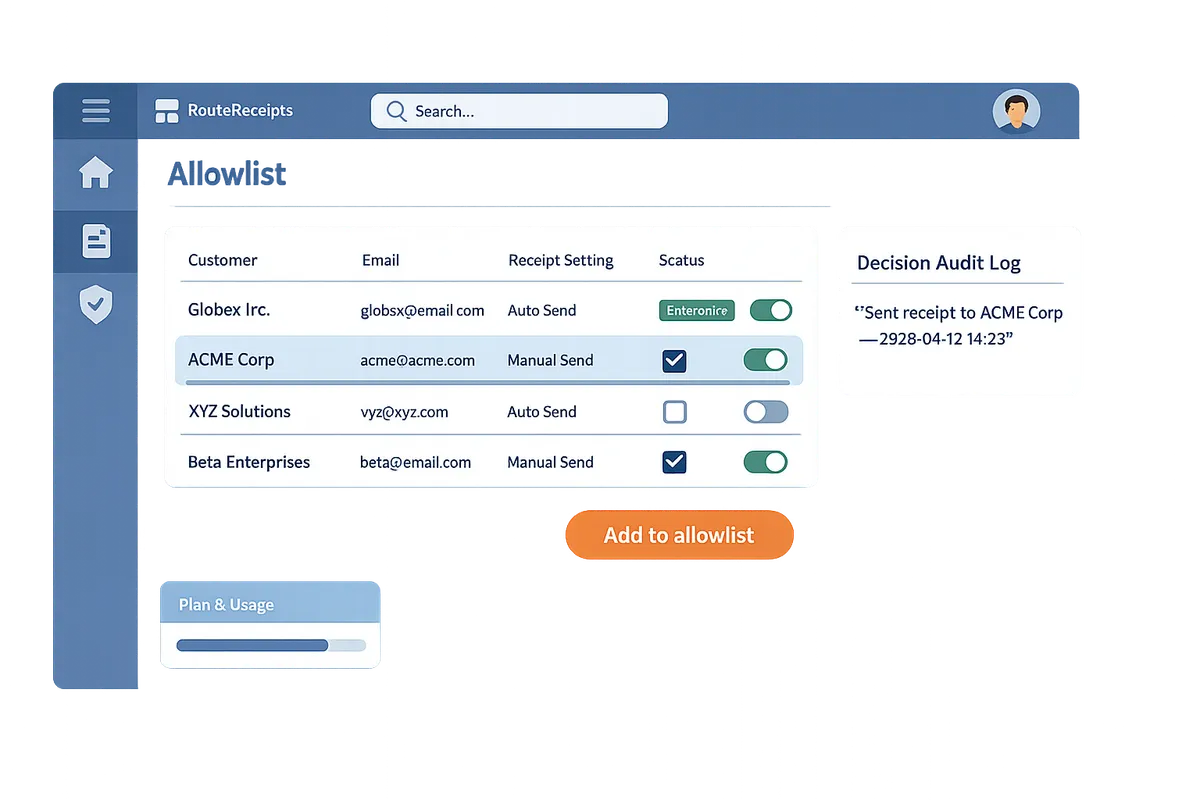
Route Receipts provides an allowlist-based routing UI, a decision audit log, plan and usage controls, and simple in-dashboard management for receipts. The app adds these key capabilities to your Stripe account:
- Allowlist-based receipt routing. Create lists of customers, customer metadata, or invoice criteria that should receive email receipts. This prevents bulk emails to customers who do not need them.
- Dashboard-native UI. Manage allowlists and rules inside Stripe without building a separate admin panel or running custom webhook code.
- Decision audit log. Every send/skip decision is recorded with context for later review (see next section).
- Plan and usage controls. Start on a free plan and scale as volume grows. Route Receipts offers a free plan that includes 20 receipts per month.
Practical effects for finance and support teams:
- Fewer support tickets from misrouted receipts. A single misrouted in-person receipt can generate 20+ tickets, increasing manual reconciliation work; selective routing reduces that load (see the Stripe Terminal receipts mini-kit).
- Cleaner customer communication. Enterprise clients receive receipts for expense tracking while retail customers avoid unnecessary emails.
- Faster month-end reconciliation. Finance teams see only the receipts they need, reducing time spent matching invoices to sent emails.
For installation steps and full feature details, follow the RouteReceipts documentation for Stripe Marketplace installation for receipt routing app.
💡 Tip: Disable Stripe's automatic invoice receipts in Billing settings before enabling Route Receipts to avoid duplicate emails.
What prerequisites and org permissions are required to install RouteReceipts?
A Stripe Org Owner or Admin with the Manage apps permission must approve and install Route Receipts; developers need view access to app settings to complete configuration. Confirm whether you are installing on a standard Stripe account or a Stripe Connect platform and decide if the install will cover a single account or multiple connected accounts. Document the approval in your change log and route any legal or privacy sign-offs before enabling the app in production.
Who must approve the installation? 🛠️
A Stripe Org Owner or Admin with Manage apps permission must approve the Route Receipts installation. The approval appears during the Stripe App Marketplace OAuth flow as a modal that lists the app's requested permissions and the account(s) it will access. Route Receipts asks for access needed to read invoices and customer records and to apply allowlist rules inside your dashboard; see our RouteReceipts security and permissions FAQ for the exact scopes and audit artifacts. Record the approver, timestamp, and scope of access in your internal change log so procurement and security teams can verify the decision later.
Which account types and plans are compatible? 💳
Route Receipts installs on both standard Stripe accounts and Stripe Connect platforms; check your account type before installation. If you want the app to manage receipts for multiple connected accounts, install at the platform level and confirm you have platform admin rights for all target connected accounts. Review plan limits and billing terms in the RouteReceipts documentation and the Terms of Service before you enable the app for production. If you use Stripe Terminal, consult the Stripe Terminal receipts mini-kit to confirm how selective receipt routing will affect in-person workflows and printers.
What privacy and compliance checks should I run before install? 🔒
Review what customer data Route Receipts reads, stores, and how long it retains that data before approving installation. Compare those practices against your privacy policy, data retention rules, and any regional regulations that apply (for example GDPR data mapping or local retention requirements). Have legal or your privacy team sign off and request the RouteReceipts audit logs and scope mapping from our security FAQ to include in your procurement packet.
⚠️ Warning: Get documented privacy and legal approval before enabling Route Receipts on production billing data.
Pre-install checklist for owners, admins, and developers ✅
Complete these items before starting the install to avoid downtime and audit gaps.
- Owners / Procurement
- Confirm Org Owner or Admin will approve the app and record approval in change log.
- Request a copy of the RouteReceipts Terms of Service and security scope mapping for procurement review.
- Admins / Security
- Verify Manage apps permission and plan scope (standard account vs Connect platform).
- Review requested OAuth scopes in the Stripe install modal and cross-check with the RouteReceipts permissions FAQ.
- Developers / Integrators
- Confirm view access to RouteReceipts app settings and test account with representative invoices.
- Prepare to disable Stripe’s automatic invoice emails if you will route receipts via Route Receipts; follow the step in our documentation for disabling native receipts prior to go-live.
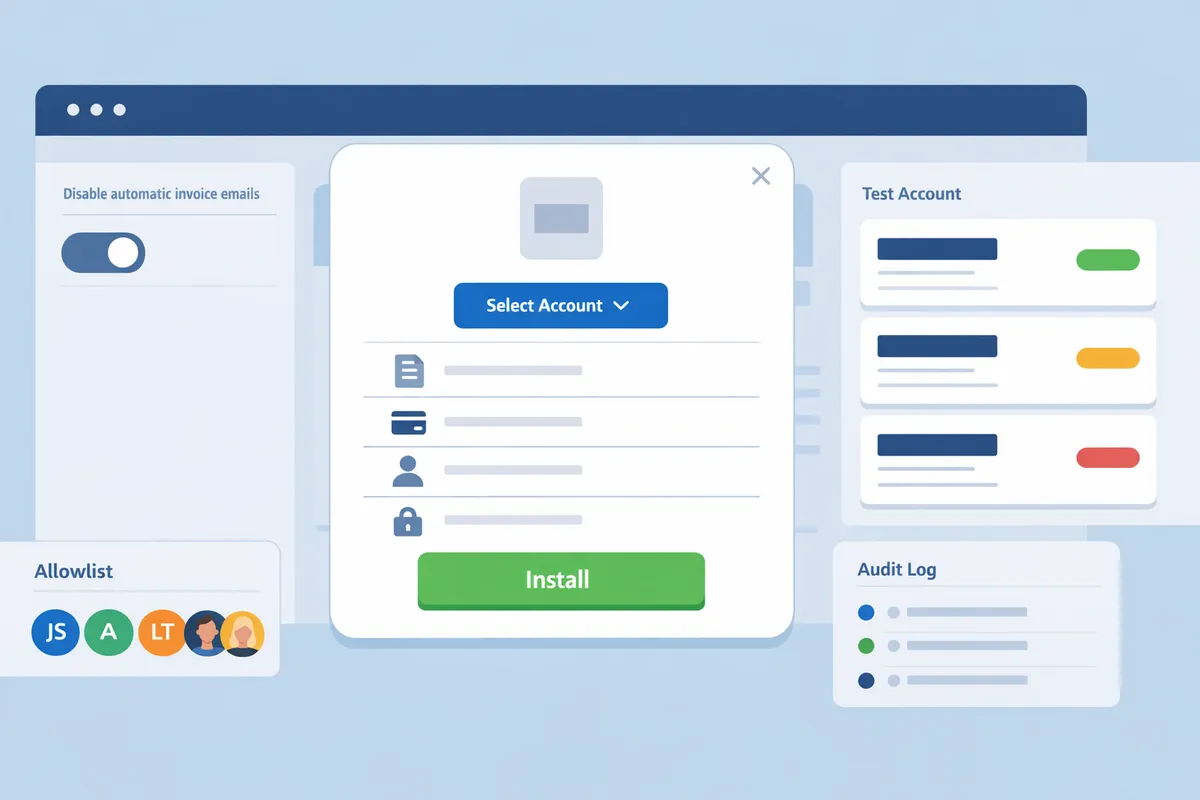
For step-by-step installation and scope mapping, follow the full RouteReceipts setup guide in the documentation and consult the security and compliance FAQ for the exact list of scopes and audit artifacts.
How do you install and configure RouteReceipts in Test mode and Live?
Install Route Receipts from the Stripe Marketplace in Test mode first, verify allowlist rules with sample invoices, then install or switch to Live and connect billing. This approach prevents accidental production emails and gives you a repeatable verification checklist. The steps below walk Org owners and admins through the exact install flow, disabling Stripe's automatic receipts, allowlist creation, and plan selection.
Step 1: Install RouteReceipts from the Stripe Marketplace 🛒
Locate Route Receipts in the Stripe Marketplace and complete the OAuth install flow with Test or Live selected.
- Open the Stripe Dashboard and choose Marketplace or Apps from the left nav.
- Search for Route Receipts and click Install.
- On the install screen select Test mode if you plan to validate first, or select Live to install directly into production.
- Grant the requested Org permissions (an Org Owner or Admin with Manage apps must approve).
- Confirm the install; you will return to the Route Receipts setup page inside the Stripe Dashboard.
Route Receipts' documentation has a step-by-step install walkthrough and screenshots for each screen. See the RouteReceipts documentation for screenshots and troubleshooting tips. Also review our security and app-scope FAQ if procurement teams need scope details before approval.
Step 2: Disable Stripe automatic receipts so Route Receipts manages delivery ⚙️
Turn off Stripe's automatic invoice emails in the Stripe Dashboard so Route Receipts can decide who receives notifications.
- In the Stripe Dashboard go to Settings > Billing > Customer emails.
- Under Automatic emails, toggle off the Invoice and Successful payment email options that would otherwise send by default.
- Save changes and note whether you disabled these in Test, Live, or both modes.
Checklist to confirm the change:
- Send a test invoice in Test mode and verify Stripe did not emit an email.
- Confirm Route Receipts logged the routing decision for that invoice in its audit view.
- Repeat the test with a non-allowlisted customer to confirm no email is sent.
⚠️ Warning: If Stripe automatic receipts remain enabled while Route Receipts is active, customers can receive duplicate emails. Disable Stripe emails first and confirm via a test invoice before moving to Live.
Step 3: Create and manage an allowlist in the Route Receipts dashboard 📝
Create an allowlist inside the Route Receipts dashboard to control exactly which customers receive invoice receipts. An allowlist is a dashboard-native list that specifies customer emails, domains, or metadata rules that permit receipt delivery.
- Open Route Receipts inside the Stripe Dashboard and navigate to Allowlist.
- Add single entries by email or Stripe customer_id for ad-hoc exceptions.
- Add rule-based entries using email domains (for example, company.com) or customer metadata (for example, metadata:billing_type=enterprise).
- Bulk import using a CSV template (columns: customer_id,email,optional_metadata).
Example enterprise rules: add all customers with metadata billing_type=enterprise, or allow receipts for any @partnercompany.com email domain. Route Receipts shows a decision audit log for each invoice so you can trace why an email was or was not sent. For CSV templates, limits, and import field definitions consult the RouteReceipts documentation on allowlist management.
💡 Tip: Use metadata rules if you already flag enterprise customers in your billing system; that avoids manual CSV uploads for large customer bases.
Step 4: Choose a plan, monitor usage, and link billing 💳
Select your Route Receipts plan during setup and connect billing in the app before switching to Live. Route Receipts offers a free tier that includes 20 receipts per month; upgrade paths are available for higher volume.
- In the Route Receipts app go to Billing or Plans.
- Review included monthly allowances and the overage policy, then pick the plan that fits your monthly invoice routing volume.
- Connect or confirm the Stripe billing account so charges are processed on your Stripe invoice cycle.
- Monitor consumption in Route Receipts > Usage to see how routed invoices count toward your plan.
How usage counts: each invoice routed to an allowlisted recipient increments your monthly usage meter. Upgrade mid-cycle to increase allowance; plan changes take effect immediately but can affect billing for the current cycle—see billing details in the RouteReceipts documentation.
Switching Test to Live (quick checklist):
- Complete all verification tests in Test mode: allowlist behavior, audit log entries, and duplicate-email checks.
- Return to the Stripe Marketplace and install Route Receipts again with Live selected, or re-run the OAuth flow in Live.
- Ensure Billing is connected to your Live Stripe account and the desired plan is active.
- Send a Live smoke test invoice to an allowlisted and a non-allowlisted address and confirm expected behavior and audit entries.
For a related implementation that covers in-person receipts and selective routing for Stripe Terminal, see the Stripe Terminal SDK Receipts Implementation Mini-Kit 2026. Also consult the RouteReceipts FAQ for common install questions.
How do you test, roll out, optimize, and troubleshoot RouteReceipts across accounts and Connect platforms?
Use Test mode for end-to-end validation, then perform a staged three-phase rollout across accounts and Connect platforms while monitoring Route Receipts audit logs and clear success metrics. This approach minimizes missed receipts and limits business risk during expansion. The sections below give checklists, rollout stages, quick fixes for duplicates or misses, and finance-ready optimization examples.
Verify routing decisions and test end-to-end behavior 🧪
Verify routing by sending test invoices in Stripe Test mode and confirming matching decision entries in the Route Receipts audit log. Start with a small matrix of test cases that covers: enterprise customers on the allowlist, retail customers off the allowlist, customers with missing metadata, and Connect transfers. Use numbered steps to keep tests repeatable for auditors and stakeholders.
- Create test customers with distinct metadata tags (for example: enterprise=true, partner=true).
- Generate invoices in Test mode that exercise each routing branch (paid, unpaid, manual invoice).
- Open the Route Receipts decision audit log and confirm a matching decision entry for each invoice. Note the decision path (allowlist match, policy applied).
- Verify delivery or suppression by checking the destination mailbox or using a controlled inbox. Capture screenshots of: the invoice, the audit entry, and the mailbox result.
For a practical sample size, test 20 representative invoices that mimic your monthly distribution across customer types. This reveals common edge cases without wasting time. Refer to the Route Receipts documentation for step-by-step Test mode checks and audit log locations.
💡 Tip: Require double opt-in for any newly added receipt recipients to avoid compliance issues and reduce mistaken deliveries.
Roll out Route Receipts to multiple accounts and Connect platforms safely 🚀
Roll out Route Receipts in three stages: pilot, expanded beta, then full production to limit blast radius and catch account-specific edge cases. Apply the app to a single Org or Connect platform during the pilot, then add similar accounts during beta before global enablement.
Use this staged checklist:
- Pilot (1 account / 1 Connect platform). Validate key success criteria: audit log accuracy, no missed enterprise receipts, and a target reduction in unnecessary emails. Run the pilot for 2-4 billing cycles.
- Expanded beta (3–10 accounts or platforms). Add accounts that represent different billing patterns (high-volume retail, enterprise with expense policies, partners). Confirm metrics and look for cross-account failures.
- Full production. Enable Route Receipts on remaining accounts and document the installation timestamp and operator.
Set rollback triggers before you expand: more than two missed enterprise receipts in a billing cycle, or >5% of invoices with unexpected suppression. Track KPIs in the Route Receipts dashboard and your Stripe org audit logs so you can compare pre- and post-rollout baselines. For Connect-specific guidance and permissions mapping, consult the security and permissions FAQ.
Troubleshooting duplicates or missing receipts ⚠️
Fix duplicate or missing receipts by confirming Stripe automatic receipts are disabled and by tracing the decision path in the Route Receipts audit log. The audit log shows why a receipt was sent, suppressed, or re-sent, which makes diagnostics straightforward.
Quick diagnostic checklist:
- Confirm Stripe automatic receipts are turned off at the account level. Duplicate sends often occur when both Stripe and Route Receipts try to deliver the same invoice.
- Inspect the Route Receipts audit log for the invoice ID. Note timestamps and decision reasons to determine whether suppression or a duplicate send occurred.
- Verify allowlist entries for the affected customer. Small typos in email or customer ID fields cause misses.
- Reconcile timestamps across systems; time zone mismatches can make a suppression look like a missing send.
- Check for multiple Route Receipts installations on the same account or overlapping app permissions.
If quick fixes do not resolve the issue, follow the stepwise diagnostics in the Route Receipts troubleshooting docs and contact support with the invoice ID, timestamps, and screenshots.
⚠️ Warning: Avoid bulk edits to allowlist rules in production without a rollback plan; a single mistyped rule can suppress many legitimate receipts.
Optimization and finance use-case examples 📈
Finance teams should apply targeted templates like enterprise-only receipts and partner billing suppression to reduce inbox noise and speed reconciliation. Use real numbers in pilot planning to quantify ROI and justify rollout.
Example scenario: a billing group processes 200 invoices per month with 60 enterprise customers. If you pilot Route Receipts for those 60 accounts and reduce unnecessary retail receipts by 150 per month, you avoid 150 support or reconciliation touchpoints. If each touchpoint averages 2 minutes of staff time, that equals 5 hours saved per month. Use this formula to estimate savings for your organization: avoided_receipts × avg_minutes_per_ticket ÷ 60 = staff_hours_saved.
Optimization checklist:
- Standardize customer metadata across systems so Route Receipts rules match reliably.
- Schedule quarterly allowlist reviews to remove stale entries and catch changes in client relationships.
- Use the audit log for compliance reporting and to produce evidence for procurement or security reviews.
- For in-person payment receipts, align Route Receipts rules with your Stripe Terminal configuration; the Stripe Terminal SDK mini-kit shows common pitfalls for printed and emailed receipts.
For full implementation playbooks and templated rules that finance teams can adopt, see the RouteReceipts for Stripe user guide and the Stripe Terminal receipts and printing guide.
Frequently Asked Questions
This FAQ answers common installation, permission, testing, and rollout questions for Org owners, admins, and developers evaluating Route Receipts. Use these answers to confirm prerequisites, validate behavior in Test mode, and plan a staged rollout across accounts.
Who can install the RouteReceipts Stripe app in my organization? 🛠️
Only a Stripe Org Owner or an Admin with app installation rights can install Route Receipts. Developers cannot complete the install without an owner or admin approving the OAuth permission prompt. The install prompt appears inside the Stripe Marketplace flow and requests the app scopes needed to read invoices, read and write customer metadata, and post decisions to your account; see our security and permissions breakdown in the RouteReceipts permissions FAQ for a scope-by-scope explanation. If procurement or security teams require evidence, export the app consent screen and the scope list from the Marketplace during the install flow.
Can I test RouteReceipts before enabling it in Live mode? 🧪
Yes. Install Route Receipts in Stripe Test mode to validate allowlist rules, audit logging, and routed receipt behavior before switching to Live. Test with representative sample invoices: create test customers that match allowlist rules and others that should be suppressed, then invoice them and confirm decisions appear in the Route Receipts decision audit log. Use the checklist in our documentation to verify: allowlist matching, audit entries for each invoice, and that Route Receipts does not send production emails while in Test mode. Keep a written test matrix and timestamps to simplify troubleshooting and handoff to operations.
How do I prevent duplicate invoice emails after install? ⚠️
Disable Stripe's automatic invoice receipt emails in the Stripe Dashboard before enabling Route Receipts to avoid duplicate messages. In the Stripe Dashboard go to Settings > Billing > Customer emails and turn off the invoice email options that would otherwise send receipts. After changing that setting, send a small set of live invoices to confirm Stripe does not send any automatic emails and that Route Receipts is producing the intended routing decisions as recorded in the audit log.
⚠️ Warning: Do not enable Route Receipts in Live mode until you have confirmed Stripe automatic receipt suppression and validated routing with Test mode; otherwise customers may receive duplicate receipts.
How does the allowlist determine who receives receipts? 🔎
The allowlist in Route Receipts matches customer identifiers and metadata rules you configure inside the Route Receipts dashboard. Common matching methods include customer email address, Stripe customer ID, subscription plan ID, and custom metadata fields; you can also create logical rules that combine these attributes. For large customer sets, use the dashboard bulk import option (CSV upload) to add allowlist entries and tag them for easy management. Every routed decision stores the matching rule in the decision audit log so you can trace why a receipt was sent or suppressed; see the documentation for examples of rule syntax and import templates.
Can I roll out RouteReceipts to multiple connected accounts or platforms? 🚀
Yes. Use a staged rollout across connected accounts and Stripe Connect platforms to limit risk and validate behavior before broad deployment. A recommended three-stage approach: 1) Pilot a single account with representative enterprise and retail customers; 2) Expand to a small set of accounts or Connect platforms and monitor audit logs and support ticket volume for 7–14 days; 3) Proceed to full production rollout once metrics show expected routing and no duplicate emails. During each stage, track key checkpoints: audit-log consistency, sample invoice verification, and support ticket trends. For in-person receipts routed via Stripe Terminal, refer to the Terminal implementation mini-kit for scanner and printer considerations when routing receipts.
What should I do if a customer expects a receipt but does not receive one? 🧾
First, check the Route Receipts decision audit log to see why the invoice was suppressed or routed. The audit entry will show which allowlist rule (if any) matched the customer and whether a routing decision suppressed the email. Next, confirm the customer is actually on the allowlist or that their metadata matches the rule, and verify Stripe automatic receipts remain disabled. If the invoice should have been sent, re-send the invoice receipt manually from the Stripe Dashboard and document the incident in your support or incident log with the audit-log ID for future audits. If you need help interpreting the audit entry, our docs and FAQ include common decision examples and remediation steps.
Where can I find billing, usage limits, and terms for RouteReceipts? 📄
You can review plan details, usage limits, and Route Receipts Terms of Service inside the Route Receipts dashboard and on the documentation and FAQ pages. The documentation explains plan upgrade paths and how usage is counted, while the Terms of Service covers billing, acceptable use, and data handling. If your security or procurement team needs compliance artifacts, reference the permissions and compliance FAQ which lists the audit artifacts and scope details you can export during install.
Final steps and next actions
Verify the integration in test mode, confirm allowlist routing, then deploy to live accounts when results match expectations. Route Receipts is an app that controls which Stripe customers receive invoice emails by managing an allowlist directly inside the Stripe dashboard.
Install the routereceipts stripe app in test mode vs live to validate behavior without affecting customers. Run a few test invoices, check the decision audit log, and confirm Stripe’s automatic receipts are disabled where needed. Follow the step-by-step setup in our RouteReceipts documentation and review common install questions in the RouteReceipts FAQ. If you integrate receipts from in-person payments, see the Stripe Terminal SDK Receipts Implementation Mini-Kit 2026 for specific Terminal guidance.
💡 Tip: Disable Stripe’s built-in receipt emails before going live to avoid duplicate messages and unexpected support tickets.
Start a free trial and follow the getting-started guide in our docs to complete your first live install. For security and permission mapping, consult the RouteReceipts security and permissions FAQ before rolling the app to multiple connected accounts.