
Install RouteReceipts via Stripe App Marketplace
Sending invoice receipts to every customer can create inbox clutter and add hours of manual cleanup for finance teams. To install routereceipts via stripe app marketplace, our guide walks you through setup, disabling Stripe's automatic receipts, and creating allowlist rules. RouteReceipts is a Stripe app that controls which customers receive invoice receipt emails by applying an allowlist and storing routing decisions in an audit log. You will install the app, configure routing rules, manage limits, and troubleshoot duplicate or missing receipts. Using our app avoids hours of custom webhook work and reduces compliance risk for enterprise billing. See our Stripe Terminal receipts guide and the RouteReceipts Stripe setup documentation to learn the single setting that stops most duplicate emails.
What does installing Route Receipts via the Stripe App Marketplace change in my Stripe workflow?
Installing Route Receipts via the Stripe App Marketplace inserts a dashboard-native routing layer that controls which customers receive invoice receipt emails. The app intercepts Stripe's default all-or-none receipt behavior and evaluates each invoice against an allowlist you manage inside the Stripe dashboard. That change reduces unnecessary emails and creates an auditable decision log without custom webhooks.
What is Route Receipts and how does it work? 🧭
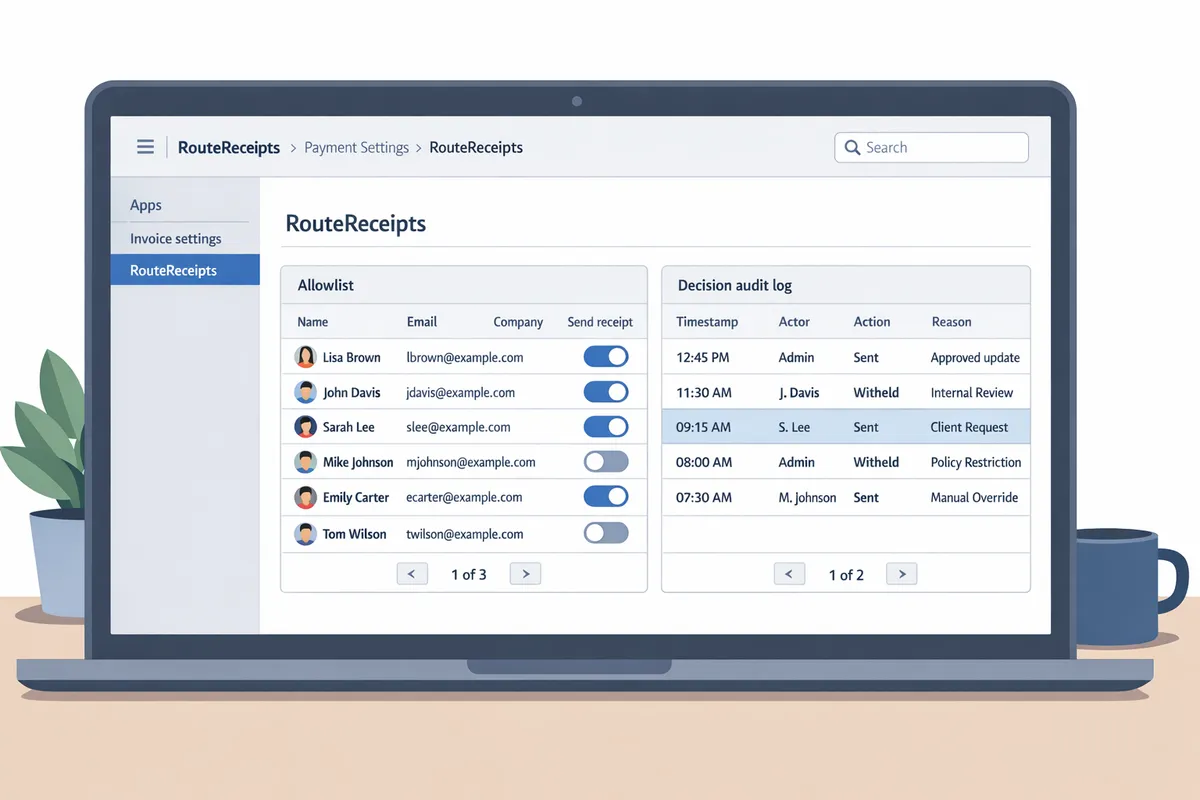
Route Receipts is a Stripe app that routes invoice emails using an allowlist managed inside the Stripe dashboard. The allowlist accepts customer IDs, emails, or metadata tags and Route Receipts evaluates that list when an invoice is finalized. The app writes a decision audit log for every routed invoice so finance or compliance teams can trace why a receipt was sent or withheld. After install, Route Receipts appears under your Stripe Apps and in the invoice settings area; see the RouteReceipts documentation for step-by-step screenshots and exact dashboard locations.
Which business outcomes does Route Receipts deliver? ✅
Route Receipts reduces unwanted receipt volume and ensures receipts reach customers who need them for expense tracking. For example, an agency billing both retail buyers and enterprise clients can stop receipt spam to retail customers while guaranteeing enterprise receipts hit expense systems. Route Receipts' decision audit log simplifies audits by showing who was allowed, who was blocked, and the reason for each routing decision. Route Receipts' documentation explains how to disable Stripe's automatic receipts to prevent duplicate deliveries, and the Stripe Terminal SDK Receipts Implementation Mini-Kit 2026 covers similar sequencing issues for in-person receipts.
💡 Tip: Disable Stripe's automatic receipts after install to avoid sending duplicate emails; the setup steps are in the RouteReceipts documentation.
How does Route Receipts compare to a custom solution? 📊
Route Receipts typically requires less development time and lower ongoing maintenance than building an in-house receipt router. Below is a concise comparison of the three common approaches.
| Feature | Route Receipts | Custom in-house router | Stripe default receipts |
|---|---|---|---|
| Build time | Minutes to a few hours to install and configure | Weeks to months of developer time | None — default behavior out of the box |
| Maintenance hours | Low: dashboard management and occasional plan changes | High: bug fixes, webhook monitoring, and updates | None for configuration; high downstream support if you need selective sending |
| Compliance surface | Small: audit log lives in Stripe, fewer integrations to monitor | Larger: more components to secure and audit | Medium: no routing controls, hard to prove selective delivery |
| Upfront cost for small teams | Low: free tier available and predictable plans | High: developer hours and hosting costs | None, but may create support costs from misrouted receipts |
| Best fit | Teams that need selective sending quickly without engineering overhead | Organizations with bespoke routing rules tightly coupled to internal systems | Accounts that accept sending receipts to every customer or none |
Route Receipts removes the business risk of spending developer time on a brittle system and shifts control into the Stripe dashboard so non-developers can manage allowlists. For a deeper feature comparison, see our article comparing Route Receipts and Stripe native receipts.
For step-by-step install and post-install configuration, follow the RouteReceipts documentation and the user guide for no-code setup: RouteReceipts documentation and RouteReceipts for Stripe: Complete User Guide to a No-Code Stripe App for Receipts (2026 Edition).
What do you need before installing Route Receipts from the Stripe App Marketplace?
You need an admin-level Stripe account with Marketplace install permission, a decision about Stripe's automatic invoice emails, and verified customer contact fields before installing Route Receipts via the Stripe App Marketplace. Performing these checks prevents duplicate emails, reduces failed deliveries, and speeds the install. According to RouteReceipts' documentation, most install issues trace back to missing team permissions or incomplete customer data.
Which Stripe permissions are required? 🔑
An admin-level Stripe user with permission to install Marketplace apps must complete the OAuth install flow for Route Receipts. Go to Stripe Dashboard > Settings > Team and confirm the installer has the Owner or Administrator role and that your organization allows third-party app installs. If you use SSO or an enforced security policy, the account owner may need to grant the install explicitly.
Checklist (do these before you start the Marketplace flow):
- Confirm the installer is listed on Dashboard > Settings > Team and has Owner or Administrator role.
- Verify there are no SSO blocks by checking Dashboard > Business settings > Authentication or your IdP settings.
- If you do not see Marketplace app options, ask the account Owner to enable app installs or run the flow for you.
See the RouteReceipts documentation for the exact OAuth prompts you will accept during install.
What billing and plan decisions should I make first? 💳
Decide whether to disable Stripe's automatic invoice receipt emails before enabling Route Receipts to avoid duplicate messages or leaving customers with no receipts. If you plan a phased migration, you can keep Stripe receipts on for a short testing window, but expect duplicates unless you filter recipients first. Our recommended post-install settings appear in the RouteReceipts docs and explain when to turn off Stripe's automatic receipts.
Steps to decide and implement billing settings:
- Review your current invoice email cadence and note which customers must keep receiving Stripe-native receipts.
- Decide if you will migrate all customers at once or use a staged allowlist approach.
- After install, follow our docs to toggle Stripe's automatic receipts or set Route Receipts as the primary sender.
⚠️ Warning: If you disable Stripe automatic receipts without completing your allowlist, some customers will not receive any receipts. Test with a small allowlist first.
Refer to our RouteReceipts for Stripe: Complete User Guide to a No-Code Stripe App for Receipts (2026 Edition) for migration patterns and common billing setups.
What customer data checks help avoid issues? 🧾
Confirm that every customer record you expect to send receipts to contains a valid email and consistent metadata fields before installing Route Receipts. Export a customers CSV from Stripe and scan for missing emails, duplicate customer IDs, and inconsistent metadata tags that you will use to build your allowlist.
Quick CSV validation steps:
- Export: Dashboard > Customers > Export customers CSV.
- Check email column: remove rows with empty emails or obvious typos (emails should contain an @ and a valid domain).
- Normalize phone numbers to E.164 format if you collect numbers (example: +12223334444).
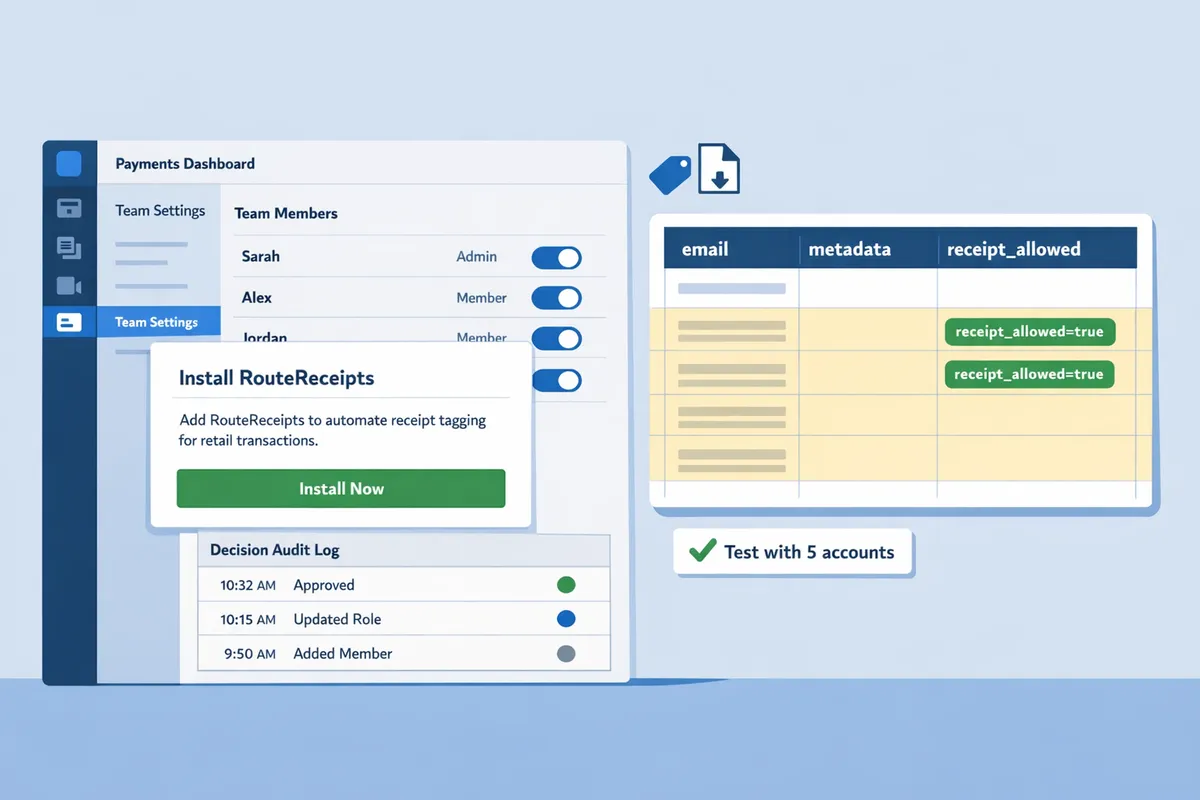
- Add or confirm a metadata tag you will use for allowlisting, for example receipt_allowed=true for enterprise clients.
- Remove or merge duplicate customer_id entries to prevent multiple deliveries.
Example scenario: a company that invoices both enterprise and retail customers should tag enterprise accounts with receipt_allowed=true and test with 5 accounts before scaling. Our FAQ explains how Route Receipts uses allowlist metadata and where to configure tags in the app.
How do I set up Route Receipts through the Stripe App Marketplace step-by-step?
Install Route Receipts by finding the app in the Stripe App Marketplace, completing the OAuth consent flow inside Stripe, and finishing onboarding in the Route Receipts dashboard. This three-step, no-code path gets selective receipt routing live without custom webhooks or engineering work.
Step 1: Find and install the app in the Stripe App Marketplace 🔍
Open the Stripe Dashboard, go to Marketplace, search for "Route Receipts", and click Install to begin the OAuth flow. Follow this checklist during the Marketplace install to avoid common permission mistakes:
- Log into the Stripe account you want to connect and open Stripe Dashboard > Marketplace.
- Search for "Route Receipts" and select the app card.
- Click Install. Stripe displays the OAuth consent dialog that lists requested permissions.
- Confirm the Stripe account (test vs live) shown at the top of the dialog.
- Accept the permissions and complete the redirect back to Route Receipts onboarding.
Route Receipts asks for access to read customers and invoices and to manage invoice email routing and subscription billing so it can make routing decisions. According to RouteReceipts' documentation, use an admin-level Stripe account during install to avoid rejected scopes or missing permissions. If the install fails, check account role and try again from a different browser session.
See the RouteReceipts documentation for annotated Marketplace screenshots and a list of the exact permissions.
Step 2: Complete initial Route Receipts configuration ⚙️
Finish onboarding in the Route Receipts dashboard by setting your allowlist rules, choosing the default routing behavior, and confirming audit log settings. Use these steps to configure routing so receipts behave predictably:
- Choose your allowlist identifier (customer ID, customer email, or invoice metadata) and import any existing list.
- Set default routing: either send receipts only to allowlisted customers or send to everyone except those excluded.
- Enable the decision audit log so every routing decision stores a timestamp, actor, and rule that matched.
- If you want Route Receipts to control all outbound invoice emails, disable Stripe automatic invoice emails in your Stripe settings. Only disable Stripe's automatic emails after you confirm routing works in test mode to avoid duplicate or missing messages.
⚠️ Warning: Disable Stripe automatic invoice emails only after you verify routing in test mode. Doing it too soon can create duplicate or missing receipts that trigger support tickets.
For detailed onboarding screens and explanations of each audit-field, consult the RouteReceipts for Stripe: Complete User Guide to a No-Code Stripe App for Receipts (2026 Edition).
Step 3: Manage plans, limits, and billing post-install 🧾
Subscribe to a Route Receipts plan from the Route Receipts billing page and confirm the Stripe-linked subscription to match your monthly receipt volume. Manage these items after install:
- Open Billing or Usage in the Route Receipts dashboard to view current consumption and remaining capacity.
- Choose your plan and confirm billing via the Stripe checkout flow; Route Receipts links billing to your Stripe account for seamless subscription handling.
- Set usage alerts inside Route Receipts so your finance team receives a notice when you approach plan limits.
A DIY or in-house script requires continuous monitoring and manual scaling, which can waste hours and create billing gaps. Using Route Receipts moves plan management into the dashboard so you can upgrade with a single click.
Post-install checklist: what to verify immediately ✔️
Within 15 minutes verify test invoices route correctly, your allowlist entries are saved, and the audit log records routing decisions. Follow this quick, numbered checklist after installation:
- Create a test invoice in Stripe test mode for an allowlisted customer and confirm they receive the receipt.
- Create a test invoice for a non-allowlisted customer and confirm they do not receive the receipt (if your default blocks non-allowlisted recipients).
- Open the Route Receipts allowlist and confirm the entries you added appear with correct identifiers.
- Check the decision audit log for entries that match the two test invoices and show the rule that applied.
- Confirm Stripe automatic invoice emails are disabled if you expect Route Receipts to be the single source of truth.
- Verify billing is active and usage counters appear in the dashboard.
- If you use Stripe Terminal or in-person receipts, run an in-person test and reference the Stripe Terminal SDK Receipts Implementation Mini-Kit 2026 for sequencing checks.
- If anything fails, consult the RouteReceipts FAQ and the documentation pages linked in the dashboard for troubleshooting steps.
How do I verify Route Receipts is working and troubleshoot common install issues?
Verify Route Receipts is working by running targeted test invoices and matching each Stripe invoice event to the corresponding Route Receipts decision in the app audit log. Our website's documentation and FAQ provide step-by-step setup details; use those if you need a refresher before testing. The checks below show exactly which Stripe events and audit entries to inspect and which quick fixes to try for the most common problems.
How do I run test invoices and confirm routing? 🧪
Create two test invoices—one for a customer on your allowlist and one for a customer not on the allowlist—and confirm only the allowlisted customer receives the Route Receipts email. Follow these steps:
- In Stripe, switch to Test mode and create or select two customers: one with the allowlisted customer ID or email and one without. Use the exact customer ID from the Stripe customer page (for example, cus_ABC123) to avoid typos.
- Generate an invoice for each customer and finalize payment or mark paid so that Stripe emits normal invoice events.
- In the Stripe Dashboard, open Events and look for the sequence invoice.finalized, invoice.sent (if Stripe attempted an email), and invoice.payment_succeeded. Note timestamps and invoice IDs.
- In the Route Receipts dashboard, open the decision audit log and find entries that match those invoice IDs. Confirm the audit entry shows a decision of "sent" for the allowlisted customer and "supressed" or "not sent" for the non-allowlisted customer, with matching timestamps.
- If the allowlisted customer did not receive an email, check the audit entry for an error note and then open the full Stripe event details to confirm the recipient email field was present.
If you need a refresher on install and routing behavior, see the RouteReceipts documentation and the RouteReceipts FAQ for examples and screenshots.
💡 Tip: Always run tests in Stripe test mode and paste the customer ID from the Stripe customer page into Route Receipts' allowlist to avoid typos.
What are the most common install problems and fixes? 🛠️
Permission errors, leaving Stripe's automatic receipts enabled, and incorrect allowlist formats are the most frequent causes of problems; each has a clear fix. Common problems and fixes:
- Permission errors. Fix: Re-run the OAuth install using an admin-level Stripe user or account owner. If the installer lacked Marketplace install rights, uninstall then reinstall from the Stripe App Marketplace while signed in as the correct user.
- Stripe automatic receipts still enabled. Fix: Turn off automatic invoice emails in Stripe Billing settings before testing. If you leave them on, customers may receive duplicate emails from Stripe and from Route Receipts.
- Incorrect allowlist formats. Fix: Use either the full Stripe customer ID (cus_...) or the exact customer email. Edit the allowlist in the Route Receipts dashboard and paste IDs directly from Stripe.
- Duplicate receipts after a fix. Fix: Check for parallel systems sending emails (third-party billing tools or legacy webhooks). Temporarily pause those systems and rerun tests.
- Missing receipts for allowlisted customers. Fix: Confirm the customer record contains a valid email and that the Route Receipts audit log shows a "sent" decision. If the audit log shows no entry, the app did not receive the event and you should re-check OAuth permissions.
If you want deeper context on event ordering and terminal receipts, our guide on Stripe Terminal receipts explains common sequencing issues and how a single misrouted receipt can create many support tickets.
When should I contact Route Receipts support and what info should I include? 📩
Contact Route Receipts support when routing decisions do not appear in the audit log or when receipts still send to all customers after you disable Stripe's automatic emails. Provide the following to speed troubleshooting:
- Stripe account ID (acct_...).
- Example invoice IDs (in_...) and the exact timestamps of the test invoices.
- Screenshots of the Route Receipts decision audit log showing the missing or unexpected entries.
- Screenshots or export of the Stripe event entries that correspond to those invoice IDs (invoice.finalized, invoice.sent, invoice.payment_succeeded).
- Whether tests were run in Test or Live mode and the name or email of the Stripe user who installed the app.
- Steps you already tried (OAuth reinstall, disabling Stripe receipts, editing the allowlist).
Attach logs or screenshots and reference the related invoice IDs in your support message. If you have already reviewed our troubleshooting steps, link the specific doc section from the RouteReceipts documentation to the support note so the team can pick up where you left off.
Frequently Asked Questions
This section answers the most common merchant questions about installing Route Receipts via the Stripe App Marketplace. Use these short, factual answers to confirm install time, required resources, data handling, billing, and where to find troubleshooting steps.
How long does the install take?
Install typically completes in under 10 minutes for an admin user. This assumes you follow the three-step Marketplace flow and do not spend extra time editing Stripe's automatic receipt settings or building a large allowlist during onboarding. For a focused install that keeps it under 10 minutes, follow the step-by-step instructions in the RouteReceipts documentation and run a single test invoice after OAuth consent.
Do I need developer resources to use Route Receipts?
No development resources are required to install and use Route Receipts for basic receipt routing. The app adds a dashboard-native UI inside Stripe where admins create and manage allowlists and routing decisions without custom webhooks. You may need an engineer only if you want to automate allowlist syncs from an external system or build a custom integration; for most merchants the dashboard covers common workflows (see the complete user guide for examples).
Will Route Receipts send duplicate emails?
Duplicate emails occur if Stripe's automatic receipt emails remain enabled while Route Receipts also sends receipts. Disable Stripe automatic receipts after you confirm Route Receipts routing to prevent duplicates; the setup guide shows the exact toggle and test steps.
⚠️ Warning: Avoid leaving Stripe automatic receipts enabled during or after install to prevent duplicate invoice emails and extra support tickets.
For further context on how misrouted receipts drive support load, see the Stripe Terminal SDK receipts implementation mini-kit.
Where does Route Receipts store routing decisions?
Route Receipts stores routing decisions and an audit log inside the Stripe dashboard section added during install. The audit log records who edited allowlist entries and the decision reason for each routed invoice, which helps accounting reviews and compliance checks. Refer to the RouteReceipts documentation for examples of audit entries and how to export them for internal records.
How do I upgrade my Route Receipts plan?
You upgrade Route Receipts plan tiers from the app's billing page inside the Route Receipts dashboard. The billing page explains how usage limits change during your billing cycle and how to start or end a trial; the documentation outlines common upgrade scenarios so you can plan for higher volume months.
Is customer data shared outside Stripe and Route Receipts?
Route Receipts processes only the customer data required to evaluate receipt routing and stores audit logs; it does not share customer data with third parties without consent. For full details on data handling, retention, and legal terms, review the RouteReceipts Terms of Service and the RouteReceipts FAQ, or contact support for enterprise data questions.
You can control which customers get invoice receipts after installing Route Receipts.
If you choose to install routereceipts via stripe app marketplace, you gain a dashboard-native way to send receipts only to customers who need them, which reduces inbox clutter and cuts time spent on avoidable support and accounting checks. This setup keeps receipt delivery intentional and auditable so finance and customer teams stop chasing duplicates.
💡 Tip: Disable Stripe's automatic receipts before activating Route Receipts to avoid duplicate emails. See the getting-started steps in the documentation for the exact order.
Follow the getting-started guide to finish allowlist setup and confirm routing behavior in your Stripe account. Start a free trial of Route Receipts in the Stripe App Marketplace, then use the RouteReceipts documentation to configure your allowlist and plan. If you handle in-person payments, consult the Stripe Terminal SDK Receipts Implementation Mini-Kit 2026 for verification steps and best practices to prevent misrouted receipts.